# Stream App API Documentation
> Complete API documentation and guides for Stream App
This file contains all documentation content in a single document following the llmstxt.org standard.
## Getting Started with Stream
Welcome to **Stream**, your partner for seamless and secure online payments.
This guide walks you through the essentials to integrate our **checkout experience** into your website or app.
The full payment flow:
> Your site → Stream Secure Checkout → Redirect to your success or failure page
## Overview: Integration Steps
1. [Authorization](#authorization)
1. [Create a Customer (Consumer)](#create-a-customer-consumer)
1. [Creating a Payment Link](#creating-a-payment-link)
1. [Handling Payment Redirects](#handling-payment-redirects)
1. [Retrieve Payment or Subscription Status](#retrieve-payment-or-subscription-status)
---
## Authorization
All API calls require authentication using your Stream API Key Pair (`api-key` + `api-secret`).
1. Navigate to Stream API Settings.
1. Click **Create Key Pair** and store the keys securely.
To authenticate your requests, encode your API key and secret as a Base64-encoded token. Use the following command (replace `api-key` and `api-secret` with your actual values):
```bash
echo -n 'api-key:api-secret' | base64
```
Include this Base64-encoded token in the `x-api-key` authentication header for all API requests:
```
x-api-key:
```
---
## Create a Customer (Consumer)
Before you can generate a payment link for a specific customer, you must first create a customer (consumer) record in Stream. This step registers the customer in your organization and returns a unique identifier that you'll use to tie payment links to that customer.
### Why Create a Customer First?
- **Personalized checkout**: When you attach a customer to a payment link, Stream skips the customer-details form during checkout because the customer's information is already known.
- **Customer tracking**: Every invoice, subscription, and payment is linked back to the customer record, making reconciliation straightforward.
- **Repeat billing**: For recurring products, the customer record is required to manage the subscription lifecycle.
### Step 1: Prepare the Customer Data
Decide which contact fields to include. The only **required** field is `name`. All other fields are optional but recommended for a complete integration.
| Field | Type | Required | Description |
| ------------------------- | ---------- | -------- | --------------------------------------------------------------------------- |
| `name` | string | **Yes** | Full name of the customer |
| `phone_number` | string | No | Phone number (E.164 format, e.g., `+966501234567`) |
| `email` | string | No | Email address |
| `external_id` | string | No | Your own system's ID for this customer (useful for cross-referencing) |
| `iban` | string | No | IBAN (max 34 characters) for bank-related operations |
| `alias` | string | No | Short alias or display name |
| `comment` | string | No | Internal notes about the customer |
| `preferred_language` | string | No | Customer's preferred language for communications |
| `communication_methods` | string[] | No | Preferred channels: `WHATSAPP`, `EMAIL`, `SMS` (can include multiple) |
> **Tip**: Always include at least `phone_number` or `email` so Stream can send payment notifications to the customer.
### Step 2: Send the Create Request
- **Endpoint**: `POST /api/v2/consumers`
- **Auth**: `x-api-key: `
**cURL example:**
```bash
curl -X POST https://stream-app-service.streampay.sa/api/v2/consumers \
-H "x-api-key: " \
-H "Content-Type: application/json" \
-d '{
"name": "Ahmad Ali",
"email": "ahmad@example.com",
"phone_number": "+966501234567",
"external_id": "cust_12345",
"communication_methods": ["EMAIL", "SMS"]
}'
```
### Step 3: Handle the Response
A successful response (`200 OK`) returns the full customer record. The most important field is `id` — this is the `organization_consumer_id` you'll use when creating payment links.
**Example response (simplified):**
```json
{
"id": "a1b2c3d4-e5f6-7890-abcd-ef1234567890",
"name": "Ahmad Ali",
"email": "ahmad@example.com",
"phone_number": "+966501234567",
"external_id": "cust_12345",
"is_deleted": false,
"created_at": "2025-06-15T10:30:00Z",
"communication_methods": ["EMAIL", "SMS"],
"preferred_language": "ar"
}
```
> See the full response schema in the [Create Consumer API Reference](/api/v2-consumers-create).
### Step 4: Handle Errors
If the request fails validation, the API returns a `422` status with an array of error details:
```json
{
"detail": [
{
"loc": ["body", "name"],
"msg": "Field required",
"type": "missing"
}
]
}
```
Each object in the `detail` array contains `type` (error kind), `loc` (field path), and `msg` (human-readable message). Common error scenarios:
| `type` / Scenario | `loc` | `msg` (example) | Resolution |
| ------------------ | ----- | ---------------- | ---------- |
| `missing` | `["body", "name"]` | `"Field required"` | Include the required `name` field in the request body |
| `value_error` | `["body", "phone_number"]` | `"value is not a valid phone number"` | Use E.164 format: `+` (e.g., `+966501234567`) |
| `value_error` | `["body", "email"]` | `"value is not a valid email address"` | Provide a properly formatted email address |
The API may also return a non-validation error with a top-level error code instead of a `detail` array. The most common one:
| Error Code | Cause | Resolution |
| ---------- | ----- | ---------- |
| `DUPLICATE_CONSUMER` | A consumer with the same phone number or email already exists | Use [Get All Consumers](/api/v2-consumers-list) to find the existing record and use its `id` instead |
> **Tip**: Always check for an existing consumer before creating a new one to avoid `DUPLICATE_CONSUMER` errors. You can list consumers with `GET /api/v2/consumers` or match by `external_id` in your own system.
### Step 5: Use the Customer ID in a Payment Link
Once you have the customer `id` from the response, pass it as `organization_consumer_id` when [creating a payment link](#creating-a-payment-link). This ties the payment to the specific customer and skips the customer-details step at checkout.
> **Note**: If you omit `organization_consumer_id`, the payment link will collect customer details during checkout and create a new customer record automatically. Use this approach for general-purpose links shared with multiple customers.
### Managing Existing Customers
After creating customers, you can manage them with these endpoints. The `{consumer_id}` path parameter is the `id` returned by `POST /api/v2/consumers` — the same value you pass as `organization_consumer_id` when creating payment links.
| Action | Method | Endpoint | API Reference |
| ---------- | -------- | ------------------------------------ | ------------------------------------- |
| List all | `GET` | `/api/v2/consumers` | [Get All Consumers](/api/v2-consumers-list) |
| Get one | `GET` | `/api/v2/consumers/{consumer_id}` | [Get Consumer](/api/v2-consumers-get) |
| Delete | `DELETE` | `/api/v2/consumers/{consumer_id}` | [Delete Consumer](/api/v2-consumers-delete) |
Before creating a new customer, you can check for an existing record by listing consumers or using your `external_id` to avoid duplicates.
---
## Creating a Payment Link
Create a checkout/payment link using the [Payment Link API](/api/v2-payment-links-create).
- **Endpoint**: `POST /api/v2/payment_links`
- **Auth**: `x-api-key: `
Payment links redirect customers to Stream's secure checkout page. They support two use cases:
1. **For multiple customers**: Create a general-purpose link that anyone can use. Each customer enters their information during checkout. Perfect for events, group purchases, or public product sales.
1. **For one specific customer**: Create a link tied to a specific customer by setting `organization_consumer_id`. The checkout page will skip the customer details collection step since the customer information is already known. Use this when charging a known customer.
When a customer pays through a payment link, the behavior depends on the product types you include:
- **One-time products**: When the payment link is paid, Stream creates an invoice with the products. The payment can be split into multiple installments, but the product itself is a one-time purchase (not recurring).
- **Recurring products**: When the payment link is paid, Stream creates a subscription (with recurring billing) and an initial invoice. The subscription will automatically generate invoices for future billing cycles based on the recurring interval.
> **Important**: You cannot mix one-time and recurring products in the same payment link. All products must be either one-time or all must be recurring.
### Strategy: Single Order with Both One-Time + Recurring Items
If a cart contains both one-time and recurring products, split it into **two payment links** and guide the customer through a short two-step checkout. This keeps each payment link valid while preserving a single “order” in your system.
**General approach**
- Create one link that contains only **one-time** items and a separate link that contains only **recurring** items.
- Treat both links as part of the same internal order (e.g., by storing a shared order reference in metadata or your database).
- Present the links sequentially (or based on your business preference) so the customer completes both steps.
- Confirm both outcomes via your normal status checks or webhooks before marking the order as complete.
> **Note**: You'll need existing products to create payment links. See the [Products API](/api/v2-products-create) for creating products. If you want to link a payment to a specific customer, you'll also need to create a customer first using the [Consumers API](/api/v2-consumers-create).
### Example: Payment Link for Multiple Customers
This example creates a payment link that can be used by multiple different customers. Each customer will enter their information when they visit the checkout page.
```json
{
"name": "Event Registration",
"description": "Annual conference registration",
"items": [
{
"product_id": "your-product-uuid-here",
"quantity": 1
}
],
"contact_information_type": "PHONE",
"currency": "SAR",
"max_number_of_payments": 100,
"success_redirect_url": "https://example.com/success",
"failure_redirect_url": "https://example.com/failure",
"custom_metadata": {
"event_id": "conf_2025",
"campaign_source": "email_marketing"
}
}
```
**Code snippet (general-purpose, one-time product):**
```bash
curl -X POST https://stream-app-service.streampay.sa/api/v2/payment_links \
-H "x-api-key: " \
-H "Content-Type: application/json" \
-d '{
"name": "Event Registration",
"description": "Annual conference registration",
"items": [
{ "product_id": "your-product-uuid-here", "quantity": 1 }
],
"contact_information_type": "PHONE",
"currency": "SAR",
"max_number_of_payments": 100,
"success_redirect_url": "https://example.com/success",
"failure_redirect_url": "https://example.com/failure"
}'
```
> **Note**: `organization_consumer_id` is **not set**, so the link will collect customer information from each payer.
### Example: Payment Link for One Specific Customer
This example creates a payment link for a specific customer. When you specify `organization_consumer_id`, the checkout page will skip the customer details collection step since the customer information is already known.
```json
{
"name": "Product Purchase",
"description": "One-time payment for product order",
"items": [
{
"product_id": "your-product-uuid-here",
"quantity": 1
}
],
"contact_information_type": "PHONE",
"currency": "SAR",
"max_number_of_payments": 1,
"organization_consumer_id": "your-customer-uuid-here",
"success_redirect_url": "https://example.com/success",
"failure_redirect_url": "https://example.com/failure",
"custom_metadata": {
"customer_id": "cust_12345",
"order_id": "order_789"
}
}
```
> **Note**: `organization_consumer_id` **is set**, so the checkout page will skip the customer details collection step. The `max_number_of_payments` is typically set to `1` when targeting a specific customer.
### Example: Payment Link for a Recurring Product (New Subscription)
Use this when you want a customer to start a subscription from checkout. The product itself must be **recurring** (e.g., monthly), which is configured when you create the product via the [Products API](/api/v2-products-create). The payment link request is **the same endpoint** as one-time links:
- **Endpoint**: `POST /api/v2/payment_links`
- **Auth**: `x-api-key: `
When the customer completes payment, Stream automatically creates a **subscription** and an **initial invoice**. Future invoices are generated based on the product's recurring interval. You can retrieve the created subscription via the [Subscriptions API](/api/v2-subscriptions-list).
```json
{
"name": "Premium Plan Subscription",
"description": "Monthly recurring plan",
"items": [
{
"product_id": "recurring-product-uuid-here",
"quantity": 1
}
],
"contact_information_type": "EMAIL",
"currency": "SAR",
"max_number_of_payments": 1,
"organization_consumer_id": "your-customer-uuid-here",
"success_redirect_url": "https://example.com/success",
"failure_redirect_url": "https://example.com/failure",
"custom_metadata": {
"plan": "premium_monthly",
"source": "pricing_page"
}
}
```
**cURL example:**
```bash
curl -X POST https://stream-app-service.streampay.sa/api/v2/payment_links \
-H "x-api-key: " \
-H "Content-Type: application/json" \
-d '{
"name": "Premium Plan Subscription",
"description": "Monthly recurring plan",
"items": [
{ "product_id": "recurring-product-uuid-here", "quantity": 1 }
],
"contact_information_type": "EMAIL",
"currency": "SAR",
"max_number_of_payments": 1,
"organization_consumer_id": "your-customer-uuid-here",
"success_redirect_url": "https://example.com/success",
"failure_redirect_url": "https://example.com/failure"
}'
```
> **Notes**:
> - The recurring behavior is defined on the **product**, not the payment link.
> - Do not mix one-time and recurring products in the same payment link.
> - If `organization_consumer_id` is omitted, the checkout will collect customer details and the subscription will be created for that newly created customer.
### Response
The API returns a payment link object. The most important field is `url`, which you'll redirect customers to:
```json
{
"url": "https://streampay.sa/s/...",
"id": "payment-link-uuid",
"status": "ACTIVE",
"amount": "2500.00",
"currency": "SAR"
}
```
> **Note**: This response has been simplified for brevity. The full response includes additional fields like `items`, `custom_metadata`, `success_redirect_url`, and more. See the [API Reference](/api/v2-payment-links-create) for the complete response schema.
Redirect your customer to the `url` field to complete the payment securely.
### Checkout Language
The checkout page language can be overridden using the `language`
query parameter on the payment link URL. By default, the checkout page is displayed to the customer in the language the organization is configured in.
Example:
```
https://streampay.sa/s/...?...&language=en
```
Or:
```
https://streampay.sa/s/...?language=en
```
Supported values:
| Value | Language |
| ------- | ---------- |
| `ar` | Arabic (default) |
| `en` | English |
> Note: This parameter only affects the hosted checkout page UI language. Data is not affected.
---
## Handling Payment Redirects
After checkout, Stream can redirect the customer to your `success_redirect_url` or `failure_redirect_url` (if provided) with payment information as query parameters. If you omit these URLs, Stream will show its hosted success/failure pages instead.
### Redirect URL Examples
**Success redirect:**
```
https://example.com/success?id=...&invoice_id=...&status=paid&message=APPROVED
```
**Failure redirect:**
```
https://example.com/failure?payment_link_id=...&id=...&status=failed&message=...
```
### Query Parameters
All redirects include these parameters:
| Parameter | Description |
| ----------------- | ------------------------------------------------------------------------------------------------------------------------------------------------------------------------------ |
| `id` | Payment gateway payment ID - for internal use only. Useful for debugging when contacting support, but cannot be used in Stream APIs. Use `payment_id` or `invoice_id` instead. |
| `payment_link_id` | UUID of the payment link that was used |
| `status` | Payment status: `paid`, `pending`, `failed`, or `failed_internal_error` |
| `message` | Status message from the gateway (e.g., `APPROVED`, `DECLINED`, `The customer’s bank has declined.`) |
| `login_method` | Consumer's preferred login method: `PHONE` or `EMAIL` |
:::info
- **`status=failed`**: A definite rejection (e.g. insufficient funds, card declined). The payer should **retry** after addressing the issue.
- **`status=failed_internal_error`**: Transient or unclear failures (e.g. timeouts). The payer should **contact support**; money may or may not have been taken.
:::
**Additional parameters on success only:**
| Parameter | Description |
| -------------------------- | ------------------------------------------------------------------------------------------------------ |
| `invoice_id` | UUID of the invoice created from the payment link |
| `consent_id` | UUID of the payment consent/authorization |
| `payment_id` | UUID of the payment record in Stream's system |
| `organization_consumer_id` | UUID of the customer who made the payment (newly created if not set when the payment link was created) |
> **Note**: On failure, the additional parameters above are not included since the payment did not complete successfully.
### Processing the Redirect
Parse the query parameters from the redirect URL on your server.
:::danger
**Important:** Always validate the payment server-side before accepting the order or completing any business action. Fetch the invoice using the `invoice_id` from the redirect with the [Invoice API](/api/v2-invoices-get), and verify its `status`, `amount`, and `currency` match your expectations. This server-side verification ensures the payment is legitimate before updating your system state. Never trust redirect parameters alone, always verify through our API.
:::
---
## Retrieve Payment or Subscription Status
Use the **Get Payment** and **Get Subscription** endpoints to fetch the latest status programmatically.
**Endpoints**
- **Payment status:** `GET /api/v2/payments/{payment_id}` → [Payments API](/api/v2-payments-get)
- **Subscription status:** `GET /api/v2/subscriptions/{subscription_id}` → [Subscriptions API](/api/v2-subscriptions-get)
**Authentication**
Use the same `x-api-key` header described in [Authorization](#authorization):
```
x-api-key:
```
### Example: Fetch Payment Status (cURL)
```bash
curl -X GET https://stream-app-service.streampay.sa/api/v2/payments/your-payment-id \
-H "x-api-key: "
```
### Example: Fetch Subscription Status (cURL)
```bash
curl -X GET https://stream-app-service.streampay.sa/api/v2/subscriptions/your-subscription-id \
-H "x-api-key: "
```
### Example: Fetch Status in JavaScript (Node.js)
```js
const API_BASE = "https://stream-app-service.streampay.sa/api/v2";
const API_KEY = process.env.STREAM_API_KEY_BASE64; // base64(api-key:api-secret)
async function getPaymentStatus(paymentId) {
const res = await fetch(`${API_BASE}/payments/${paymentId}`, {
headers: { "x-api-key": API_KEY }
});
if (!res.ok) throw new Error(`Payment fetch failed: ${res.status}`);
const payment = await res.json();
return payment.status;
}
async function getSubscriptionStatus(subscriptionId) {
const res = await fetch(`${API_BASE}/subscriptions/${subscriptionId}`, {
headers: { "x-api-key": API_KEY }
});
if (!res.ok) throw new Error(`Subscription fetch failed: ${res.status}`);
const subscription = await res.json();
return subscription.status;
}
```
> **Tip**: The `status` field in each response is the source of truth for the current state. See the full response schema in the linked API reference pages.
---
## Pagination & Filtering
# Pagination
Pagination helps you efficiently navigate, sort, and filter large collections of data without fetching everything at once.
This is especially useful for endpoints like:
- [List Payments](/api/v2-payments-list)
- [List Products](/api/v2-products-list)
- [List Invoices](/api/v2-invoices-list)
- [List Subscriptions](/api/v2-subscriptions-list)
# Filtering
Filtering is another way to efficiently navigate and filter large collections of data without fetching everything at once.
Whenever pagination is applied, then so is filtering.
Filtering allows you to filter your fetched objects through specific features or conditions like queries.
Whenever an endpoint may return many items, Stream uses a consistent pagination and filtering structure across all list responses.
---
# Request Parameters
## Pagination Parameters
You can control pagination using the following query parameters:
| Parameter | Type | Description |
|------------------|--------|-----------------------------------------------------------------------------|
| `page` | int | Page number starting from **1**. |
| `limit` | int | Number of items per page. Maximum: **100**. |
| `sort_field` | string | Field used to sort the results. |
| `sort_direction` | string | Either `"asc"` or `"desc"` depending on sorting direction. |
By default, `sort_field` is `created_at` and `sort_direction` is `desc`.
```
GET api/v2/products?page=1&limit=20&sort_field=created_at&sort_direction=desc
```
---
#Filtering allows you to query objects based on specific attributes. When you apply filters, the `pagination` metadata in the response will reflect the total count of items *matching* your filter, not the total database count.
| Parameter | Type | Description |
|---------------|------------------|---------------------------------------------------------------------------------------------------|
| `search_term` | `string` | A generic query string. The API searches relevant fields (e.g., names, IDs, descriptions) for matches. |
| **Field Specific**| `string` / `array` | Specific attributes depending on the resource (e.g., `invoice_id`, `statuses`, `currency`). |
**Note on Array Filters:**
Some parameters, like `statuses`, accept multiple values. In the query string, this appears as repeating keys:
`statuses=PENDING&statuses=PROCESSING`
For example, the [List Payments](/api/v2-payments-list) endpoint takes filtering queries like `invoice_id` and `statuses` to filter down the returned payments.
Example query:
```
GET api/v2/payments?page=1&limit=20&invoice_id=73b89d47-1bb1-443c-9a4c-f0ee23e22191&statuses=PENDING&statuses=PROCESSING
```
---
# Pagination Response Structure
Paginated responses include a `pagination` object that provides metadata about the current, previous, and next pages.
| Field | Description |
|--------------------|-----------------------------------------------------------------------------|
| `total_count` | Number of objects returned in the current page. |
| `max_page` | Maximum page number available. |
| `current_page` | Page you are currently on. |
| `limit` | Page size (echoes your request, capped at 100). |
| `has_next_page` | Whether another page exists after this one. |
| `has_previous_page`| Whether a page exists before this one. |
Example response snippet:
```
{
"data": [...],
"pagination": {
"total_count": 20,
"max_page": 12,
"current_page": 1,
"limit": 20,
"has_next_page": true,
"has_previous_page": false
}
}
```
---
# Examples (Python)
Below are practical examples using Python's `requests` library.
## 1. Basic Pagination
Fetching the first page of results with a custom limit.
```python
API_KEY = "YOUR_API_KEY"
BASE_URL = "https://stream-app-service.streampay.sa/api/v2/products"
response = requests.get(
BASE_URL,
headers={"x-api-key": API_KEY},
params={
"page": 1,
"limit": 20
}
)
data = response.json()
print(f"Showing page {data['pagination']['current_page']} of {data['pagination']['max_page']}")
```
## 2. Global Search Filtering
Using the `search_term` to find items matching a specific string (e.g., a customer name or partial ID).
```python
API_KEY = "YOUR_API_KEY"
BASE_URL = "https://stream-app-service.streampay.sa/api/v2/customers"
response = requests.get(
BASE_URL,
headers={"x-api-key": API_KEY},
params={
"search_term": "JOHN DOE", # Searches for customer with that name
"limit": 10
}
)
results = response.json()["data"]
print(f"Found {len(results)} matches for 'Al-Faisaliah'")
```
## 3. Advanced Filtering (Lists & Specific Fields)
Filtering by a specific `invoice_id` and multiple `statuses`. Note how the list of statuses is passed to the `params` dictionary.
```python
API_KEY = "YOUR_API_KEY"
BASE_URL = "https://stream-app-service.streampay.sa/api/v2/payments"
# To filter by multiple statuses, pass them as a list
payload_filters = {
"page": 1,
"limit": 50,
"invoice_id": "73b89d47-1bb1-443c-9a4c-f0ee23e22191",
"statuses": ["PENDING", "PROCESSING"] # Requests handles this as statuses=PENDING&statuses=PROCESSING
}
response = requests.get(
BASE_URL,
headers={"x-api-key": API_KEY},
params=payload_filters
)
payments = response.json()["data"]
for p in payments:
print(f"Payment ID: {p['id']} | Status: {p['status']}")
```
## 4. Iterating Through All Pages
A robust pattern to fetch every item available.
```python
API_KEY = "YOUR_API_KEY"
BASE_URL = "https://stream-app-service.streampay.sa/api/v2/products"
page = 1
all_products = []
while True:
response = requests.get(
BASE_URL,
headers={"x-api-key": API_KEY},
params={"page": page, "limit": 100} # Maximize limit to reduce requests
)
body = response.json()
all_products.extend(body["data"])
# Stop if there are no more pages
if not body["pagination"]["has_next_page"]:
break
page += 1
print(f"Successfully fetched {len(all_products)} products.")
```
---
---
## Webhooks
Webhooks allow your platform to receive real-time notifications from Stream when key events occur—such as payment successes, failures, or cancellations. This enables you to react to events programmatically, such as updating your database, sending notifications, or triggering internal workflows.
Stream's webhook infrastructure is designed for reliability and includes features like:
- Event-specific subscriptions
- Secure payload signing
- Delivery tracking for observability
- Automatic retries using exponential backoff
## Creating a Webhook
To create or manage your webhooks, go to Webhook Settings.
There you can:
- Register a new webhook endpoint
- Select which event types you want to subscribe to
- Enable, disable, or delete webhooks
## Webhook Flow Logic
Understanding which webhooks are sent in different scenarios:
### Single Payment Succeeds
When a single payment succeeds:
1. `PAYMENT_SUCCEEDED` webhook is sent (one per payment)
2. If the payment completes the invoice (all payments are now paid), `INVOICE_COMPLETED` webhook is also sent
Example: Invoice with 1 payment of 1000 SAR
- Payment succeeds → `PAYMENT_SUCCEEDED` webhook
- Invoice completes → `INVOICE_COMPLETED` webhook
### Multiple Payments Succeed (Installments)
When multiple payments succeed together (e.g., installments):
1. `PAYMENT_SUCCEEDED` webhook is sent for each payment that succeeded (one per payment)
2. If all payments complete the invoice, `INVOICE_COMPLETED` webhook is also sent
Example: Invoice with 3 payments of 1000 SAR each
- Payments 1, 2, 3 all succeed together:
- `PAYMENT_SUCCEEDED` webhook for payment_1
- `PAYMENT_SUCCEEDED` webhook for payment_2
- `PAYMENT_SUCCEEDED` webhook for payment_3
- `INVOICE_COMPLETED` webhook
Example: Invoice with 5 payments, payments 1-3 succeed together:
- `PAYMENT_SUCCEEDED` webhook for payment_1
- `PAYMENT_SUCCEEDED` webhook for payment_2
- `PAYMENT_SUCCEEDED` webhook for payment_3
- No `INVOICE_COMPLETED` webhook (invoice not yet fully paid)
### Payment Fails
When a payment fails:
1. `PAYMENT_FAILED` webhook is sent
2. No invoice completion webhook is sent
### Payment Refunded
When a payment is refunded:
1. `PAYMENT_REFUNDED` webhook is sent
2. Invoice status does not change (invoice remains completed)
### Payment Marked as Paid
When a payment is manually marked as paid:
1. `PAYMENT_MARKED_AS_PAID` webhook is sent
2. If this completes the invoice, `INVOICE_COMPLETED` webhook is also sent
### Subscription Renewal
When a subscription cycle renews:
1. New invoice created → `INVOICE_CREATED` webhook
2. Payment succeeds → `PAYMENT_SUCCEEDED` webhook
3. Invoice completes → `INVOICE_COMPLETED` webhook
**Note:** For subscription renewals, the `INVOICE_COMPLETED` webhook indicates that the subscription cycle has been renewed successfully. The invoice will have a `subscription_id` in its payload, and you can check if it's a renewal invoice by comparing it with previous invoices for that subscription.
## Event Types
### Payment Events
- `PAYMENT_SUCCEEDED` - Payment completed successfully
- `PAYMENT_FAILED` - Payment attempt failed
- `PAYMENT_CANCELED` - Payment was canceled
- `PAYMENT_REFUNDED` - Payment was refunded
- `PAYMENT_MARKED_AS_PAID` - Payment was manually marked as paid
### Invoice Events
- `INVOICE_CREATED` - New invoice created
- `INVOICE_SENT` - Invoice sent to consumer
- `INVOICE_ACCEPTED` - Invoice accepted by consumer
- `INVOICE_REJECTED` - Invoice rejected by consumer
- `INVOICE_COMPLETED` - Invoice completed (all payments done)
- `INVOICE_CANCELED` - Invoice canceled
- `INVOICE_UPDATED` - Invoice details updated
### Subscription Events
- `SUBSCRIPTION_CREATED` - New subscription created
- `SUBSCRIPTION_ACTIVATED` - Subscription activated
- `SUBSCRIPTION_INACTIVATED` - Subscription deactivated
- `SUBSCRIPTION_CANCELED` - Subscription canceled
- `SUBSCRIPTION_FROZEN` - Subscription frozen
- `SUBSCRIPTION_CYCLE_RENEWAL_FAILED` - Subscription cycle renewal failed (use `INVOICE_COMPLETED` with `subscription_id` for successful renewals)
- `SUBSCRIPTION_CANCEL_AT_PERIOD_END` - Subscription scheduled to cancel at period end
- `SUBSCRIPTION_FREEZE_NOW` - Subscription frozen immediately
- `SUBSCRIPTION_UNFREEZE_NOW` - Subscription unfrozen immediately
- `SUBSCRIPTION_UNFREEZE_FUTURE` - Subscription scheduled to unfreeze in future
- `SUBSCRIPTION_FREEZE_CANCEL` - Subscription freeze canceled
- `SUBSCRIPTION_PLAN_CHANGE_SCHEDULED` - A plan change was scheduled to take effect at `current_period_end`.
- `SUBSCRIPTION_PLAN_CHANGE_CANCELED` - A previously scheduled plan change was canceled before it took effect.
- `SUBSCRIPTION_PLAN_CHANGED` - The scheduled plan change was actually applied — items, coupons, interval, and amount are now live on the subscription.
- `SUBSCRIPTION_PLAN_CHANGE_INVOICE_REISSUED` - While scheduling a plan change, an existing prepared next-cycle invoice was canceled and regenerated from the new target plan. This is triggered alongside `SUBSCRIPTION_PLAN_CHANGE_SCHEDULED` if it affects the plan's invoice.
- `SUBSCRIPTION_PLAN_UPDATED` - Subscription plan change was applied immediately. This applies for changing seats, adding add-ons, and changing number of subscription cycles.
### Payment Link Events
- `PAYMENT_LINK_PAY_ATTEMPT_FAILED` - Payment attempt failed for a payment link
**Note:** This webhook is sent when a payment link payment fails. Unlike regular payment failures, no invoice, payment, or subscription entities are created on failure, so `PAYMENT_FAILED` webhook cannot be sent. This event exists specifically to notify about payment link failures when no entities exist.
## Webhook Payload
The webhook POST request will have a JSON body like:
```json
{
"event_type": "PAYMENT_SUCCEEDED",
"entity_type": "PAYMENT",
"entity_id": "uuid",
"entity_url": "",
"status": "SUCCEEDED",
"data": { /* payment or event-specific data */ },
"timestamp": "2025-07-15T14:41:21.705Z"
}
```
## Webhook Payload Example
```json
{
"data": {
"invoice": {
"id": "2df0f7e0-2634-46ab-829a-bfcb0a797d87",
"url": "https://stream-app-service.streampay.sa/api/v2/invoices/2df0f7e0-2634-46ab-829a-bfcb0a797d87"
},
"payment": {
"id": "e2182d3d-b4cf-4972-bcc0-ec6d963c066d",
"url": "https://stream-app-service.streampay.sa/api/v2/payments/e2182d3d-b4cf-4972-bcc0-ec6d963c066d"
},
"payment_link": {
"id": "6361941e-3a81-4aa5-aaa6-60d6e052883a",
"url": "https://stream-app-service.streampay.sa/api/v2/payment_links/6361941e-3a81-4aa5-aaa6-60d6e052883a"
},
"metadata": {
"customer_id": "cust_12345",
"nested_data": {
"sub_field": "sub_value",
"sub_number": 678
},
"affiliate_id": "aff_987",
"custom_field_1": "value_1",
"custom_field_2": 12345,
"campaign_source": "email_marketing"
}
},
"status": "SUCCEEDED",
"entity_id": "e2182d3d-b4cf-4972-bcc0-ec6d963c066d",
"timestamp": "2025-07-22T14:40:31.485576",
"entity_url": "https://stream-app-service.streampay.sa/api/v2/payments/e2182d3d-b4cf-4972-bcc0-ec6d963c066d",
"event_type": "PAYMENT_SUCCEEDED",
"entity_type": "PAYMENT"
}
```
## Webhook Request Headers
- `Content-Type: application/json`
- `User-Agent: StreamApp-Webhook/1.0`
- `X-Webhook-Event`: Event type (e.g., `PAYMENT_SUCCEEDED`)
- `X-Webhook-Entity-Type`: Entity type (e.g., `PAYMENT`)
- `X-Webhook-Entity-ID`: Entity UUID
- `X-Webhook-Signature`:
Format: `t={timestamp},v1={signature}`
- `timestamp` is the UNIX timestamp when the signature was generated.
- `signature` is an HMAC-SHA256 of `{timestamp}.{payload}` using your webhook’s `secret_key`.
- `X-Webhook-Timestamp`: The timestamp used in the signature.
## Verifying Webhook Authenticity
:::warning
Always verify the `X-Webhook-Signature` before treating a webhook as authentic or updating your system (fulfillment, access, financial state). Reject requests with a missing or invalid signature. Unsigned or unverified payloads could be forged; never trust the JSON body alone.
:::
To verify a webhook:
1. Extract the `X-Webhook-Signature` header and split into timestamp and signature.
2. Compute the HMAC-SHA256 of `{timestamp}.{raw_request_body}` using your webhook’s `secret_key`.
3. Compare your computed signature to the value in the header.
Example (Python):
```python
def verify_webhook_signature(secret: str, raw_body: bytes, signature_header: str):
# signature_header: "t=TIMESTAMP,v1=SIGNATURE"
parts = dict(x.split('=') for x in signature_header.split(','))
timestamp = parts['t']
signature = parts['v1']
message = f"{timestamp}.{raw_body.decode()}"
computed = hmac.new(secret.encode(), message.encode(), hashlib.sha256).hexdigest()
return hmac.compare_digest(computed, signature)
```
## Webhook Delivery & Retry Logic
- Delivery Attempts:
Every webhook event triggers a delivery record. Each delivery attempt and its status (pending, delivered, failed, retrying) is tracked for auditing.
- Retry Schedule:
If your endpoint does not respond with a 2xx status, Stream will retry delivery up to 5 times.
The default retry delays (in minutes) are:
1. 1st retry: 5 minutes after the first failure
2. 2nd retry: 30 minutes after the second failure
3. 3rd retry: 2 hours (120 minutes) after the third failure
4. 4th retry: 6 hours (360 minutes) after the fourth failure
5. 5th retry: 12 hours (720 minutes) after the fifth failure
After the fifth attempt, if delivery is still unsuccessful, the webhook delivery is marked as failed and no further attempts will be made.
- Auditing:
All delivery attempts, responses, and errors are logged and can be audited.
---
## Testing Cards
## Testing Environment
In order to test your application without having to go live with cards and accounts, you can use [Moyasar's testing cards](https://docs.moyasar.com/guides/card-payments/test-cards/)) to simulate different transaction outcomes.
The test cards should be used in a sandbox environment. This is also applicable if you are using the Stream's UI in sandbox mode and want to test the flow without having to use actual cards.
## Required Card Fields
Below are the values that need to be entered for the non-card number fields when testing:
| Field | Value |
| :--- | :--- |
| **Name** | Any name made of two words separated by a space (e.g., John Doe) |
| **Year** | Any **future** year |
| **Month** | Any month (or a future month if using the current year) |
| **CVC** | Any 3 digits (4 digits for American Express (AMEX)) |
---
## List of Test Cards and Expected Outcomes
Below is the list of test card numbers you can use in your test environment to simulate specific transaction statuses (Success/Failure) according to the card network.
### Mada
| Card Number | Status | Message | Response Code | 3DS Note |
| :--- | :--- | :--- | :--- | :--- |
| `4201320111111010` | **paid** | APPROVED | 00 | ---- |
| `4201320000013020` | **failed** | UNSPECIFIED FAILURE | 99 | ---- |
| `4201320000311101` | **failed** | INSUFFICIENT FUNDS | 51 | ---- |
| `4201320131000508` | **failed** | DECLINED: LOST CARD | 41 | ---- |
| `4201321234411220` | **failed** | DECLINED | 05 | ---- |
| `4201322267774310` | **failed** | DECLINED: EXPIRED CARD | 54 | ---- |
| `4201326324640570` | **failed** | DECLINED: EXCEEDS WITHDRAWAL LIMIT | 61 | ---- |
| `4201321144311528` | **failed** | DECLINED: STOLEN CARD | 43 | ---- |
### Visa
| Card Number | Status | Message | Response Code | 3DS Note |
| :--- | :--- | :--- | :--- | :--- |
| `4111114005765430` | **paid** | APPROVED | 00 | Frictionless Authentication |
| `4111111111111111` | **paid** | APPROVED | 00 | ---- |
| `4123120000000000` | **failed** | UNSPECIFIED FAILURE | 99 | ---- |
| `4123120001090000` | **failed** | INSUFFICIENT FUNDS | 51 | ---- |
| `4123450131000508` | **failed** | DECLINED: LOST CARD | 41 | ---- |
| `4123120001090109` | **failed** | DECLINED | 05 | ---- |
| `4123128518640738` | **failed** | DECLINED: EXPIRED CARD | 54 | ---- |
| `4123123033308648` | **failed** | DECLINED: EXCEEDS WITHDRAWAL LIMIT | 61 | ---- |
| `4123125276780003` | **failed** | DECLINED: STOLEN CARD | 43 | ---- |
| `4111118250252531` | **failed** | 3DS: attempted but not available, please ensure that you have enabled Online Purchase from your bank portal. | ---- | ECI 06 |
| `4111113343111067` | **failed** | 3DS service error occurred. | ---- | 3DS fails during enrollement check |
| `4111116611600661` | **failed** | The card is not enrolled in 3DS service. | ---- | ---- |
| `4111112205628150` | **failed** | 3DS service error occurred. | ---- | 3DS fails during authentication attempt |
| `4111115784228433` | **failed** | The authentication attempt was rejected by the issuer bank. | ---- | ---- |
| `4111115620358287` | **failed** | The authentication is unavailable, please try again later or contact issuer bank if problem persisted. | ---- | ---- |
### Mastercard
| Card Number | Status | Message | Response Code | 3DS Note |
| :--- | :--- | :--- | :--- | :--- |
| `5421080101000000` | **paid** | APPROVED | 00 | ---- |
| `5105105105105100` | **failed** | UNSPECIFIED FAILURE | 99 | ---- |
| `5457210001000092` | **failed** | INSUFFICIENT FUNDS | 51 | ---- |
| `5204010101000000` | **failed** | DECLINED: LOST CARD | 41 | ---- |
| `5204730000002514` | **failed** | DECLINED | 05 | ---- |
| `5105107550274126` | **failed** | DECLINED: EXPIRED CARD | 54 | ---- |
| `5105106475101067` | **failed** | DECLINED: EXCEEDS WITHDRAWAL LIMIT | 61 | ---- |
| `5105107304607225` | **failed** | DECLINED: STOLEN CARD | 43 | ---- |
### American Express (AMEX)
| Card Number | Status | Message | Response Code | 3DS Note |
| :--- | :--- | :--- | :--- | :--- |
| `340000000900000` | **paid** | APPROVED | 00 | ---- |
| `371111111111114` | **failed** | UNSPECIFIED FAILURE | 99 | ---- |
| `340033000000000` | **failed** | INSUFFICIENT FUNDS | 51 | ---- |
| `340012340501000` | **failed** | DECLINED: LOST CARD | 41 | ---- |
| `340033000000133` | **failed** | DECLINED | 05 | ---- |
| `340000018441278` | **failed** | DECLINED: EXPIRED CARD | 54 | ---- |
| `340000753060788` | **failed** | DECLINED: EXCEEDS WITHDRAWAL LIMIT | 61 | ---- |
| `340000418501838` | **failed** | DECLINED: STOLEN CARD | 43 | ---- |
---
## Testing Apple Pay
Unlike card payments where specific test card numbers are used, testing **Apple Pay** payments in the Stream's sandbox environment is based on the **amount** sent to the API (according to [Moyassar](https://docs.moyasar.com/guides/apple-pay/testing/)).
A **real card** must be added to an Apple Pay Wallet to test the process, but you must be using the sandbox environment to ensure no actual payment is made.
The following amounts will simulate different payment outcomes:
| Amount (Minor Unit) | Amount (SAR) | Status | Message | Response Code |
| :--- | :--- | :--- | :--- | :--- |
| `20000` to `30000` | `200.00` to `300.00` | **paid** | APPROVED | 00 |
| `100000` to `110000` | `1000.00` to `1100.00` | **failed** | UNSPECIFIED FAILURE | 99 |
| `110100` to `120000` | `1101.00` to `1200.00` | **failed** | INSUFFICIENT FUNDS | 51 |
| `120100` to `130000` | `1201.00` to `1300.00` | **failed** | DECLINED: LOST CARD | 41 |
| `130100` to `140000` | `1301.00` to `1400.00` | **failed** | DECLINED | 05 |
| `140100` to `150000` | `1401.00` to `1500.00` | **failed** | DECLINED: EXPIRED CARD | 54 |
| `150100` to `160000` | `1501.00` to `1600.00` | **failed** | DECLINED: EXCEEDS WITHDRAWAL LIMIT | 61 |
| `160100` to `170000` | `1601.00` to `1700.00` | **failed** | DECLINED: STOLEN CARD | 43 |
> **Note:** Moyasar accepts the payment amount in the **minor currency unit** (e.g., cents), and the test environment uses this amount to return different results.
---
> **Tip:** Using any other amount range than the stated above will result in the payment failing.
---
## Installments
Installments allow customers to split a payment into multiple smaller payments over time. Customers can choose from available installment options (2, 3, or 4 installments) when paying an invoice or payment link.
> Note: Installments are only available for one-time products. They are automatically disabled for recurring products (subscriptions).
---
## How Installments Work
When a customer selects an installment option, Stream automatically calculates the amount for each installment and schedules them based on the split period. Each installment becomes a separate payment with its own due date.
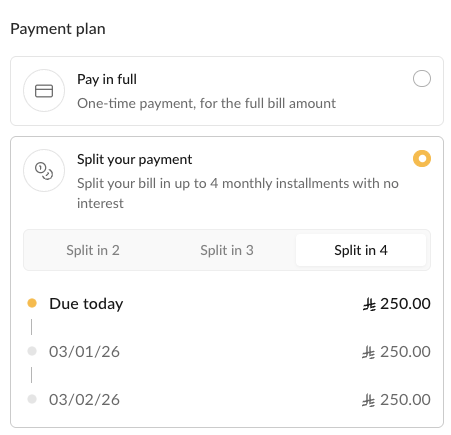
**Example:** 1,000 SAR split into 3 monthly installments:
- Installment 1: 333.33 SAR (due on payment date)
- Installment 2: 333.33 SAR (due 1 month later)
- Installment 3: 333.34 SAR (due 2 months later)
---
## How Installment Amounts Are Calculated
Installment amounts are calculated by dividing the total payment by the number of installments. If the amount doesn't divide evenly, any rounding difference is added to the last installment to ensure the total always equals the original payment amount.
For example, 999.98 SAR split into 3 installments results in: 333.33 SAR, 333.33 SAR, and 333.32 SAR (the last installment is reduced by 0.01 SAR to account for the rounding difference).
> Note: The total of all installments always equals the original payment amount.
---
## Configuration
Configure installment settings in your Payment Settings. Invoice and payment link settings are configured separately.
### Enable/Disable Installments
#### API (Payment Links)
When creating a payment link via the [Payment Links API](/api/v2-payment-links-create), you can enable or disable installments by including the `payment_methods` parameter in your request. Set `installment: true` to enable installments or `installment: false` to disable them for that specific payment link.
This setting overrides the organization's default payment link installment settings. If you don't include the `payment_methods` parameter, the organization's default settings will be used.
#### Settings Page
You can configure the default installment settings in your Payment Settings:
- **For invoices**: Enable or disable installments in the invoice payment options (invoices can only be created from the UI)
- **For payment links**: Enable or disable installments in the payment link payment options (these defaults apply when creating payment links via the UI or when the API request doesn't specify `payment_methods`)
### Split Options
Configure which numbers of installments (2, 3, or 4) are available for customers to choose from.
Default split options:
- 2 installments, monthly
- 3 installments, monthly
- 4 installments, monthly
The split period (the interval between installments, e.g., monthly, quarterly, yearly) cannot be changed through the API or dashboard. Contact Stream support to modify the split period.
### Minimum Amount
The minimum installment amount is 100 SAR per installment. If the payment amount divided by the number of installments is less than 100 SAR, that installment option will not be available.
For example, with a payment of 250 SAR:
- 2 installments: 125 SAR each ✅ (available)
- 3 installments: 83.33 SAR each ❌ (not available, below minimum)
The minimum amount cannot be changed through the API or dashboard. Contact Stream support to modify this value.
---
## Authentication
Learn how to authenticate your API requests to the Stream platform.
## Overview
All API calls to Stream require authentication using your API Key Pair. Stream uses a simple but secure authentication method where you encode your credentials and include them in every request.
## Getting Your API Keys
1. Log in to your Stream dashboard
2. Navigate to API Settings
3. Click **Create Key Pair**
4. Store your `api-key` and `api-secret` securely
5. Copy `x-api-key` to use in the APIs or you can gernerate later
:::warning Important
Your API secret should be kept secure and never exposed in client-side code or public repositories. Treat it like a password.
:::
## Authentication Methods
Stream uses HTTP Basic Authentication with Base64 encoding of your API credentials.
Encode your API key and secret as a Base64-encoded token:
```bash
echo -n 'api-key:api-secret' | base64
```
**Example:**
```bash
echo -n '038cb769-9ce3-49da-9d52-17fd49bf07e8:6ea68e79-8756-4be8-9bd2-307314e8d12c' | base64
# Output: MDM4Y2I3NjktOWNlMy00OWRhLTlkNTItMTdmZDQ5YmYwN2U4OjZlYTY4ZTc5LTg3NTYtNGJlOC05YmQyLTMwNzMxNGU4ZDEyYw==
```
#### Using the Token
Include the Base64-encoded token in the `x-api-key` header for all API requests:
```bash
curl -X POST https://stream-app-service.streampay.sa/api/v2/payment_links \
-H "x-api-key: MDM4Y2I3NjktOWNlMy00OWRhLTlkNTItMTdmZDQ5YmYwN2U4OjZlYTY4ZTc5LTg3NTYtNGJlOC05YmQyLTMwNzMxNGU4ZDEyYw==" \
-H "Content-Type: application/json" \
-d '{
"name": "Test Payment",
"amount": 100.00
}'
```
### Using SDKs
When using Stream SDKs, authentication is handled automatically. Simply provide your `x-api-key` during initialization:
#### TypeScript SDK
```typescript
const client = StreamSDK.init(process.env.STREAM_API_KEY!);
```
#### Express SDK
```typescript
app.get(
"/checkout",
Checkout({
apiKey: process.env.STREAM_API_KEY!,
// ... other config
})
);
```
---
## Branches in the API
API requests are always scoped to a single branch. When creating an API key, you specify which branches it can access. For each request, you can select the target branch, which determines where resources are created and accessed.
## Creating API Keys with Branch Access
When creating an API key, you can specify:
- Branches: List of specific branches the API key can access
- Default Branch: Default branch used when `x-branch-id` header is not provided
- Is All Branches: If `true`, the API key has access to all branches, present and future
## Selecting a Branch in API Requests
Include the `x-branch-id` header to specify which branch to use for that request:
```bash
curl -X GET https://stream-app-service.streampay.sa/api/v2/user \
-H "x-api-key: YOUR_API_KEY" \
-H "x-branch-id: branch-uuid-here"
```
If `x-branch-id` is omitted, the API key's `default_branch_id` is used.
## Branch Access Validation
The API key must have access to the branch specified in `x-branch-id`:
- If `is_all_branches=true`: Access to all organization branches
- Otherwise: Only branches listed in `branch_ids`
Requests to unauthorized branches return a 4xx error.
---
## Embedded Checkout
Render a payment link checkout in-page with the Stream Embed SDK. Create a payment link via the API first, then pass the response **`url`** into `paymentLink`. Details on creating links (products, consumers, redirects): [Creating a Payment Link](/#creating-a-payment-link).
## Prerequisites
- Same setup as payment-link creation: API key pair, and at least one product ID. See [Creating a Payment Link](/#creating-a-payment-link).
- For using Apple Pay through our embedded checkouts, the following steps need to be done:
- Get the text file from `https://streampay.sa/.well-known/apple-developer-merchantid-domain-association`
- Host the same exact text file under your domain through this path: `.well-known/apple-developer-merchantid-domain-association`
- Reach out to support team on available communication methods to register you in the PGW system.
## Example
### 1. Create a payment link
`POST /api/v2/payment_links` returns an object whose **`url`** field is what you embed (same value you would redirect to).
```bash
curl -s -X POST https://stream-app-service.streampay.sa/api/v2/payment_links \
-H "x-api-key: " \
-H "Content-Type: application/json" \
-d '{
"name": "Checkout",
"items": [{ "product_id": "your-product-uuid-here", "quantity": 1 }],
"contact_information_type": "PHONE",
"currency": "SAR",
"max_number_of_payments": 100
}'
```
Example response (trimmed):
```json
{
"url": "https://streampay.sa/ds/..."
}
```
Use that `url` as `paymentLink` in the next step. Build the request body you need (customer-specific links, metadata, redirect URLs, subscriptions, etc.) using the guide and [Create payment link](https://docs.streampay.sa/api/v2-payment-links-create).
### 2. Embed checkout
Load the default SDK, mount a container, call `Stream.Checkout` with the **`url`** from step 1. Inject the URL from your server—do not create payment links or expose API keys in frontend-only code.
```html
```
## Options
| Option | Type | Required | Description |
| ------ | ---- | -------- | ----------- |
| `paymentLink` | `string` | **Yes** | Full payment-link URL from the API (`url` field) or short ID Stream accepts |
| `container` | `string` \| `Element` | **Yes** | CSS selector or DOM element for the iframe |
| `minHeightPx` | `number` | No | Min iframe height (default **280**) |
| `maxHeightPx` | `number` | No | Max iframe height (default **920**) |
| `vhCapPx` | `number` | No | Viewport-relative height cap (default **800**) |
| `vhFraction` | `number` | No | Viewport fraction for fluid height (default **0.7**) |
## See also
- [Webhooks](/webhooks) — confirm payment server-side
- [Public API reference](https://docs.streampay.sa/)
---
## Stream API Errors
This page documents the error response format and the standardized error codes returned by Stream API endpoints. The goal is to provide a stable, predictable contract for client applications and integrators.
## Error response envelope
All handled errors return a response body using the `StreamBaseResponse` envelope:
```json
{
"error": {
"code": "STREAM_ERROR",
"message": "Something wrong happened, please contact support.",
"additional_info": "Optional human-readable details"
}
}
```
- `code`: A stable error code from `StreamErrorCodes`.
- `message`: A user‑facing message associated with the code.
- `additional_info`: Optional, best‑effort details to aid debugging.
## Common error classes and HTTP status codes
The following exception classes map to consistent HTTP status codes:
| Exception class | HTTP status |
| --- | --- |
| `BadRequestError` | 400 |
| `UnauthorizedError` | 401 |
| `ForbiddenError` | 403 |
| `PermissionForbiddenError` | 403 |
| `NotFoundError` | 404 |
| `GoneError` | 410 |
| `UnprocessableEntityError` | 422 |
| `DuplicateValueError` | 422 |
## Stream error codes
The following codes are used across all Stream API endpoints:
| Code | Message |
| --- | --- |
| `STREAM_ERROR` | Something wrong happened, please contact support. |
| `STREAM_UNKNOWN_ERROR` | Unknown exception happened; this exception will be handled as soon as possible. |
| `PHONE_ALREADY_REGISTERED` | Phone is already registered. |
| `INVALID_PARAMETERS` | Request input is not valid. |
| `INVOICE_FINALISED` | Invoice is finalised and cannot undergo this action. |
| `PAYMENT_REFUNDED_ALREADY` | Duplicate action; payment has already been refunded. |
| `PAYMENT_REFUNDED_FAILED` | Could not refund payment; processor failed. |
| `DUPLICATE_CONSUMER` | Consumer already exists. |
| `DUPLICATE_PAYMENT` | A payment with the given information already exists. |
| `PERMISSION_FORBIDDEN` | Permission forbidden. |
| `PRODUCT_USED_IN_FINALIZED_INVOICE` | Product cannot be updated; it is used by a finalized invoice. |
| `COUPON_USED_IN_FINALIZED_INVOICE` | Coupon cannot be updated; it is used by a finalized invoice. |
---
## Handling Your Own Notifications
This guide explains how to handle your own organization consumer notifications by disabling default notifications and using webhooks for event-based notifications or list APIs for scheduled notifications.
## Overview
By default, Stream sends notifications to your organization consumers (customers) for various events like payment confirmations, invoice updates, and subscription changes. If you want to handle these notifications yourself, you can:
1. Disable default org_consumer notifications - Contact support to enable the blocking setting
2. Subscribe to webhook events - For immediate, event-based notifications
3. Use list APIs - For scheduled notifications (reminders, overdue notices, etc.)
---
## Step 1: Disable Default Org Consumer Notifications
**Important:** Before disabling default notifications, you must contact our support team to disable default notifications for your organization. This prevents all default notifications from being sent to your organization consumers.
Once enabled, you can manage notifications through webhooks and list APIs as described below.
---
## Step 2: Subscribe to Webhook Events
For event-based notifications (immediate actions like payment succeeded, invoice accepted, etc.), subscribe to webhook events.
To create or manage your webhooks, go to Webhook Settings and subscribe to the relevant event types.
For a complete list of available webhook events, payload structure, verification, and delivery details, see the [Webhooks Guide](/webhooks).
---
## Step 3: Use List APIs for Scheduled Notifications
For scheduled notifications (time-based reminders like payment due, overdue, etc.), use list APIs with appropriate filters to query for items that need notifications. For example, use the [List Payments API](/api/v2-payments-list), [List Invoices API](/api/v2-invoices-list), or [List Subscriptions API](/api/v2-subscriptions-list).
---
## Stream MCP Server
MCP (Model Context Protocol) is a standard way for AI clients to call tools and read resources from external systems.
The Stream MCP Server exposes Stream operations (payments, invoices, customers, products, etc.) as MCP tools so clients like Claude Desktop, Cursor, and VS Code can use them directly.
**Resources vs tools:** MCP **resources** (such as the OpenAPI documentation) do not require a Stream API key. **Tools** that call the Stream API—payments, customers, invoices, products, coupons, and the rest, **do** require a valid key in your client configuration.
## Main Feature: API Documentation Integration
The primary feature of this MCP server is direct integration with Stream API documentation.
- It exposes the full OpenAPI spec as an MCP resource.
- AI clients can read the latest API schema and stay aligned with current endpoints.
- This improves tool accuracy for request fields, validation, and endpoint usage.
## Hosted endpoint
Stream hosts the MCP server at:
`https://mcp.streampay.sa/mcp`
Configure your client to use this URL. Include `Authorization` when you use tools that hit the Stream API; you can omit it if you only read documentation resources.
---
## Client configuration (Claude Desktop / Cursor / VS Code)
Add this to your MCP config file (`claude_desktop_config.json` or `mcp.json`). Use the `headers` block whenever you rely on tools that require the Stream API (omit it for resources-only use, such as the OpenAPI spec).
```jsonc
{
"mcpServers": {
"stream": {
"url": "https://mcp.streampay.sa/mcp",
"headers": {
// Required for operational tools (payments, customers, etc.); omit if you only read docs resources (e.g. OpenAPI).
"Authorization": "Bearer sk_live_your_key_here"
}
}
}
}
```
---
## Available Tools
### Payment Links
| Tool | Description |
|---|---|
| `create_payment_link` | Create a new checkout / payment link |
| `list_payment_links` | Paginated list with optional status filter |
| `get_payment_link` | Get a single payment link by ID |
| `deactivate_payment_link` | Deactivate / archive a payment link |
### Customers
| Tool | Description |
|---|---|
| `create_customer` | Create a customer with name, email, phone, metadata |
| `list_customers` | Paginated list of customers |
| `get_customer` | Get a single customer by ID |
| `update_customer` | Update customer fields |
| `delete_customer` | Soft-delete a customer |
### Products
| Tool | Description |
|---|---|
| `create_product` | Create a one-time or recurring product |
| `list_products` | List products with optional type filter |
| `get_product` | Get a single product by ID |
| `update_product` | Update product name, description, or price |
| `archive_product` | Archive a product |
### Coupons
| Tool | Description |
|---|---|
| `create_coupon` | Create a fixed or percentage discount coupon |
| `list_coupons` | List coupons with optional status filter |
| `get_coupon` | Get a single coupon by ID |
| `deactivate_coupon` | Deactivate a coupon |
### Invoices
| Tool | Description |
|---|---|
| `create_invoice` | Create a ZATCA-compliant invoice |
| `list_invoices` | List invoices with filters |
| `get_invoice` | Get a single invoice by ID |
| `send_invoice` | (Re)send an invoice via email / SMS |
| `void_invoice` | Void / cancel an unpaid invoice |
### Payments
| Tool | Description |
|---|---|
| `list_payments` | List payments with filters |
| `get_payment` | Get payment details |
| `refund_payment` | Issue a full or partial refund |
### Resources
Reading these resources does not require your Stream API key in the client (unlike the operational tools above).
| Resource URI | Description |
|---|---|
| `stream://docs/openapi` | Full Stream OpenAPI spec (cached, auto-refreshed) — main documentation integration feature |
---
## Auto Charge On Demand
Charge a payment using the consumer's latest tokenized card.
This endpoint allows organizations to charge a payment using the consumer's latest
active tokenized card. The following conditions must be met:
- The consumer must have at least one active tokenized card.
- The payment must be in an unpaid status (PENDING, PROCESSING, FAILED, etc.).
**This is a restricted API and is only available to some organizations.**
---
## Cancel Scheduled Subscription Plan Change
Cancel a previously-scheduled deferred plan change.
No-op (still 200) when no SCHEDULED pending change exists. If the original
schedule call had already re-issued the next-cycle invoice (Arm B), the new
invoice remains unchanged — it represents the upcoming cycle the consumer was
notified about.
---
## Cancel Subscription
Schedule or complete cancellation and optionally cancel related invoices.
Behavior depends on subscription **status**:
- **ACTIVE**: Cancellation is **scheduled for the end of the current billing period** (the subscription
stays active until then; it is not moved to ``CANCELED`` immediately).
- **INACTIVE**, **TRIALING**, **TRIAL_PENDING**: The subscription is **canceled immediately**
(status becomes ``CANCELED``).
Use ``cancel_related_invoices`` to also cancel ongoing invoices tied to this subscription.
---
## Create Branch
Create a new branch for the organization.
If a branch with the same name already exists, returns the existing branch.
---
## Create Consumer
Create a new consumer with contact information and payment details.
---
## Create Coupon
Create a new coupon with discount details and active/inactive status.
---
## Create Invite For A User To Join The Organization By Email
Send an email invitation for a user to join the organization.
An invitation email will be sent to the specified address with a link to accept the invitation.
Organization admins can invite users to any branch, while branch admins can only invite to their own branches.
---
## Create Invoice
Create a new invoice with items and payment details.
Important: For most use cases, use the Checkout/Payment Link API (`/v2/payment_links`) instead.
It generates a payment link that you can embed in your own web page or redirect to.
Use Cases:
- Create an invoice and manually mark it as paid for reference
- Automated invoice generation
---
## Create Payment Link
Create a new checkout/payment link for collecting payments.
- **One-time products**: Creates an invoice (with its associated payment) when paid.
- **Recurring products**: Creates a subscription (with its associated invoice and payment) when paid.
**Notes:**
- Cannot mix one-time and recurring products in the same payment link.
- Installments are automatically disabled for recurring products (subscriptions).
- Invoices, subscriptions and payments are created only after a successful payment.
---
## Create Product
Create a new product with pricing and description.
= 1)"},"is_price_inclusive_of_vat":{"type":"boolean","title":"Is Price Inclusive Of Vat","description":"If True, amount includes VAT","default":true},"is_price_exempt_from_vat":{"type":"boolean","title":"Is Price Exempt From Vat","description":"If True, no VAT applies to this price","default":false}},"type":"object","required":["currency","amount"],"title":"ProductPriceInlineCreate","description":"Inline price creation for product create/update endpoints."},"type":"array","nullable":true,"description":"Prices for the product in different currencies. At least one price is required."},"is_one_time":{"type":"boolean","title":"Is One Time","description":"Will this product be used only one time in one invoice?","default":false},"type":{"description":"the type of product: one off or recurring","type":"string","enum":["RECURRING","ONE_OFF"],"title":"ProductType"},"recurring_interval":{"nullable":true,"description":"Represents the billing cycle interval if product is recurring. Required for cyclic products. For ONE_OFF, value is ignored.","type":"string","enum":["WEEK","MONTH","SEMESTER","YEAR"],"title":"RecurringInterval"},"recurring_interval_count":{"type":"integer","minimum":1,"title":"Recurring Interval Count","description":"The billing cycle multiple if the product is recurring","default":1},"is_price_exempt_from_vat":{"type":"boolean","nullable":true,"description":"[DEPRECATED] Is the price exempt from VAT? Use VAT settings in prices[] instead."},"is_price_inclusive_of_vat":{"type":"boolean","nullable":true,"description":"[DEPRECATED] Is the price inclusive of VAT? Use VAT settings in prices[] instead."}},"type":"object","required":["name","type"],"title":"ProductCreate"}}}}}
>
---
## Create Subscription
Create a new subscription with items, coupons, and payment methods.
Important: For most use cases, use the Checkout/Payment Link API (`/v2/payment_links`) instead.
It generates a payment link that you can embed in your own web page or redirect to.
Use Cases:
- Create a subscription and manually marking it as paid for reference
- Automated subscription creation
---
## Delete Branch
Delete a branch from the organization.
---
## Delete Consumer
Delete a consumer from the organization.
---
## Delete Coupon
Delete a coupon from the organization.
---
## Delete Product
Delete a product from the organization.
---
## Delete Subscription Freeze
Remove a freeze period from a subscription.
Deletes the specified freeze period, allowing the subscription to resume normal invoice
generation immediately (if the freeze period was active).
---
## Freeze Subscription
Freeze a subscription to pause invoice generation for a specific period.
During the freeze period, no invoices will be generated for the subscription. The subscription
will automatically resume after the freeze period ends.
---
## Get All Branches
List all branches for the organization.
Returns branches based on user role:
- Organization admins see all branches in the organization
- Branch admins and branch users see only branches they're assigned to
---
## Get All Consumers
List all consumers with pagination, filtering, and sorting options.
---
## Get Branch By Id
Retrieve detailed information about a specific branch by its ID.
---
## Get Consumer
Retrieve detailed information about a specific consumer by their ID.
---
## Get Coupon
Retrieve detailed information about a specific coupon including redemption history.
---
## Get Invoice
Retrieve detailed information about a specific invoice by its ID.
---
## Get Payment
Retrieve detailed information about a specific payment by its ID.
---
## Get Payment Link
Retrieve detailed information about a specific payment link by its ID.
---
## Get Product
Retrieve detailed information about a specific product by its ID.
---
## Get Subscription
Retrieve detailed information about a specific subscription by its ID.
---
## Get User And Organization Info
Retrieve information about the authenticated user and their organization.
It requires a valid authentication token and can be used to verify API
connectivity and retrieve user context. This endpoint returns details about the currently
authenticated user and their associated organization.
---
## List Coupons
List all coupons with pagination, filtering, and sorting options.
---
## List Invoices
List all invoices with pagination, filtering, and sorting options.
---
## List Payment Links
List all payment links with pagination, filtering, and sorting options.
---
## List Payments
List all payments with pagination, filtering, and sorting options.
Payments can be filtered by invoice IDs, statuses, date ranges, or search terms.
---
## List Products
List all products with pagination, filtering, and sorting options.
---
## List Subscription Freezes
List all freeze periods for a specific subscription.
---
## List Subscriptions
List all subscriptions with pagination, filtering, and sorting options.
---
## Mark Payment As Paid
Manually mark a payment as paid.
Record a payment received through manual methods (CASH, BANK_TRANSFER, CARD, or QURRAH).
**Requirements:**
- Payment must be in unpaid status (PENDING, UNDER_REVIEW, or FAILED)
- Payment method must be manual (CASH, BANK_TRANSFER, CARD, or QURRAH)
- For installment invoices, invoice must be in ACCEPTED status
Automatically completes the invoice if all payments are paid.
---
## Refund Payment
Process a refund for a payment.
Supports full refunds. The refund reason and optional note can be specified in the request.
**Note:** If the customer paid multiple payments in a single transaction, you may receive an error
(400 Bad Request) indicating multiple payments in the transaction. The error response will include
details about all related payments. In this case, set `allow_refund_multiple_related_payments` to
`true` to refund all payments that were part of the same transaction.
---
## Uncancel Subscription
Withdraw a pending cancellation so the subscription continues after the current billing period.
Only **ACTIVE** subscriptions are accepted.
If the subscription is not scheduled to be cancelled, the request succeeds as a no-op.
---
## Update Branch
Update branch information.
If a branch with the same name already exists, returns an error.
---
## Update Consumer
Update consumer information such as contact details or payment methods.
---
## Update Coupon
Update coupon details such as discount amount or active status.
---
## Update Invoice In Place
Partially update specific invoice fields in-place.
This endpoint allows updating only the fields specified in the request.
Use for quick changes such as updating the description or scheduled date.
---
## Update Payment Link Coupons
Update link-level and item-level coupons on a payment link.
Recomputes totals. New checkouts use the updated coupons;
payments already in progress are unchanged.
---
## Update Payment Link Status
Update the status of a payment link.
Allows activating or deactivating a payment link. When deactivated, the link will no longer
accept new payments. Existing payments in progress are not affected.
---
## Update Product
Update product details such as name, price, or description.
= 1)"},"is_price_inclusive_of_vat":{"type":"boolean","title":"Is Price Inclusive Of Vat","description":"If True, amount includes VAT","default":true},"is_price_exempt_from_vat":{"type":"boolean","title":"Is Price Exempt From Vat","description":"If True, no VAT applies to this price","default":false}},"type":"object","required":["currency","amount"],"title":"ProductPriceInlineCreate","description":"Inline price creation for product create/update endpoints."},"type":"array","nullable":true,"description":"Prices for the product in different currencies."},"is_active":{"type":"boolean","nullable":true,"description":"Whether the product is active. If `true`, the product won't be available for purchase anymore. Existing customers will still have access to the product details in the invoice, and subscriptions will continue normally."},"type":{"nullable":true,"description":"the type of product: one off or recurring","type":"string","enum":["RECURRING","ONE_OFF"],"title":"ProductType"},"recurring_interval":{"nullable":true,"description":"Represents the billing cycle interval if product is recurring. Required for cyclic products","type":"string","enum":["WEEK","MONTH","SEMESTER","YEAR"],"title":"RecurringInterval"},"recurring_interval_count":{"type":"integer","minimum":1,"nullable":true,"description":"The billing cycle multiple if the product is recurring"},"is_price_exempt_from_vat":{"type":"boolean","nullable":true,"description":"[DEPRECATED] Is the price exempt from VAT? Use VAT settings in prices[] instead."},"is_price_inclusive_of_vat":{"type":"boolean","nullable":true,"description":"[DEPRECATED] Is the price inclusive of VAT? Use VAT settings in prices[] instead."}},"type":"object","title":"ProductUpdate"}}}}}
>
---
## Update Subscription
Update subscription items, coupons, billing interval, description, auto-cancel cycles, or payment methods.
Updatable fields:
- **Items** (products and quantities) — deferred to the next cycle.
- **Subscription-level coupons** — same deferral as items.
- **Recurring interval / interval count** (e.g. monthly ↔ yearly) — deferred to the next cycle.
- **Description** — applied immediately.
- **Until cycle number** (auto-cancel) — applied immediately.
- **Payment method overrides** — applied immediately.
Any change to items, coupons, or interval is recorded as a *pending
change* that takes effect at ``current_period_end``. The response carries a
``pending_change`` block describing the deferred change, including a
``next_invoice_preview`` and the per-line diff. If the next-cycle invoice
has already been generated and is unpaid, it is automatically cancelled
and re-issued with the new amount.
To change anything else (e.g. the consumer / payer), cancel the
subscription and create a new one. Use ``DELETE /pending-change`` to
revert a previously scheduled change before it takes effect.
yearly without re-checkout. Interval changes always take effect at the next cycle (deferred).","type":"string","enum":["WEEK","MONTH","QUARTER","YEAR"],"title":"SubscriptionRecurringInterval"},"recurring_interval_count":{"type":"integer","minimum":1,"nullable":true,"description":"Optional new interval multiplier. Defaults to the current value if omitted. Same deferral behavior as ``recurring_interval``."},"exclude_coupons_if_installments":{"type":"boolean","nullable":true,"description":"Optional override for the same field on the subscription."}},"type":"object","required":["items","coupons"],"title":"SubscriptionUpdate"}}}}}
>
---
## Update Subscription Freeze
Update an existing subscription freeze period.
Allows modifying the start and end dates of a freeze period. The subscription will remain
frozen during the updated period.
---
## Express SDK
For the complete Express SDK documentation, please visit our GitHub repository:
**[📦 @streamsdk/express on GitHub →](https://github.com/streampayments/streamsdk-express)**
## Quick Links
- **[Installation & Quick Start](https://github.com/streampayments/streamsdk-express#installation)**
- **[API Documentation](https://github.com/streampayments/streamsdk-express#api-documentation)**
- **[Code Examples](https://github.com/streampayments/streamsdk-express/tree/main/examples)**
- **[Demo Application](https://github.com/streampayments/stream-express-sdk-demo)**
- **[npm Package](https://www.npmjs.com/package/@streamsdk/express)**
## Overview
The Stream Express SDK provides a clean, declarative way to integrate Stream payments into your Express.js applications. Built on top of [@streamsdk/typescript](https://www.npmjs.com/package/@streamsdk/typescript), it offers drop-in handlers for checkout flows and webhook processing.
**Key Benefits:**
- 🚀 **Simple Integration** - Add payment processing in minutes
- 🔒 **Type-Safe** - Full TypeScript support with type definitions
- 🎯 **Event-Driven** - Clean event handlers for webhook processing
- 🔄 **Flexible** - Supports guest and authenticated checkout flows
- 📦 **Lightweight** - Minimal dependencies (~7KB)
- 🔗 **Auto-Updates** - Inherits stream-sdk updates automatically
## Installation
```bash
npm install @streamsdk/express
```
## Quick Example
```typescript
const app = express();
app.use(express.json());
// Payment link handler
app.get("/checkout", Checkout({
apiKey: process.env.STREAM_API_KEY!,
successUrl: "https://myapp.com/success",
returnUrl: "https://myapp.com/cancel",
}));
// Webhook handler with events
app.post("/webhooks/stream", Webhooks({
apiKey: process.env.STREAM_API_KEY!,
onPaymentSucceeded: async (data) => {
console.log("Payment succeeded:", data);
// Update your database, send confirmation emails, etc.
},
onPaymentFailed: async (data) => {
console.log("Payment failed:", data);
},
onInvoiceCreated: async (data) => {
console.log("Invoice created:", data);
},
}));
app.listen(3000);
```
For complete documentation, examples, and API reference, visit the [GitHub repository](https://github.com/streampayments/streamsdk-express).
## Demo Application
Want to see it in action? Clone and run the **[Express SDK demo repository](https://github.com/streampayments/stream-express-sdk-demo)** locally for a quick working example.
## Related SDKs
- **[TypeScript SDK](/sdks/typescript)** - Core SDK for Node.js/TypeScript
- **[API Reference](/api)** - REST API documentation
- **[Webhooks Guide](/webhooks)** - Webhook event reference
---
## TypeScript SDK
For the complete TypeScript SDK documentation, please visit our GitHub repository:
**[📦 @streamsdk/typescript on GitHub →](https://github.com/streampayments/streamsdk-typescript)**
## Quick Links
- **[Installation & Quick Start](https://github.com/streampayments/streamsdk-typescript#installation)**
- **[API Documentation](https://github.com/streampayments/streamsdk-typescript#api-documentation)**
- **[Code Examples](https://github.com/streampayments/streamsdk-typescript/tree/main/examples)**
- **[npm Package](https://www.npmjs.com/package/@streamsdk/typescript)**
## Overview
The Stream TypeScript SDK provides a complete Node.js/TypeScript interface for:
- 🔐 Secure API Key authentication
- 👥 Customer (Consumer) management
- 📦 Product catalog management
- 💳 Payment link creation
- 🔄 Subscription handling
- 🧾 Invoice generation
- 🎟️ Coupon & discount management
## Installation
```bash
npm install @streamsdk/typescript
```
## Quick Example
```typescript
const client = StreamSDK.init(process.env.STREAM_API_KEY!);
const result = await client.createSimplePaymentLink({
name: "Monthly Subscription",
amount: 99.99,
consumer: {
email: "customer@example.com",
name: "Ahmad Ali",
phone: "+966501234567",
},
product: {
name: "Premium Plan",
price: 99.99,
},
successRedirectUrl: "https://yourapp.com/success",
failureRedirectUrl: "https://yourapp.com/failure",
});
console.log("Payment URL:", result.paymentUrl);
```
For complete documentation, examples, and API reference, visit the [GitHub repository](https://github.com/streampayments/streamsdk-typescript).
## Related SDKs
- **[Express.js SDK](/sdks/express)** - Framework adapter for Express.js applications
- **[API Reference](/api)** - REST API documentation